Contents
What VerseWorthy does
Suno makes the music. It does not tell you whether your song is any good, and it only follows what you give it.
VerseWorthy is the other half: a songwriting assistant that helps you start a song, tells you honestly where it is weak, and prepares everything Suno needs — the lyrics with the right section tags, a style description, an exclude list and suggested settings.
You choose one of three paths. Each one walks you through a few short steps, one screen at a time.
| Path | What you do | Steps |
|---|---|---|
| Write a song | Describe what the song is about. VerseWorthy writes a complete, original lyric in your genre. | Sound → Idea → Your song → Feedback (optional) → Suno |
| Improve my lyrics | Paste lyrics you already have. Get a score, what works, what to change, and a rewrite if you want one. | Sound → Your lyrics → Feedback (optional) → Suno |
| Make an instrumental | No words. Pick a genre and mood, describe the scene, and get a Suno prompt with a structure. | Sound → Track → Suno |
Getting started
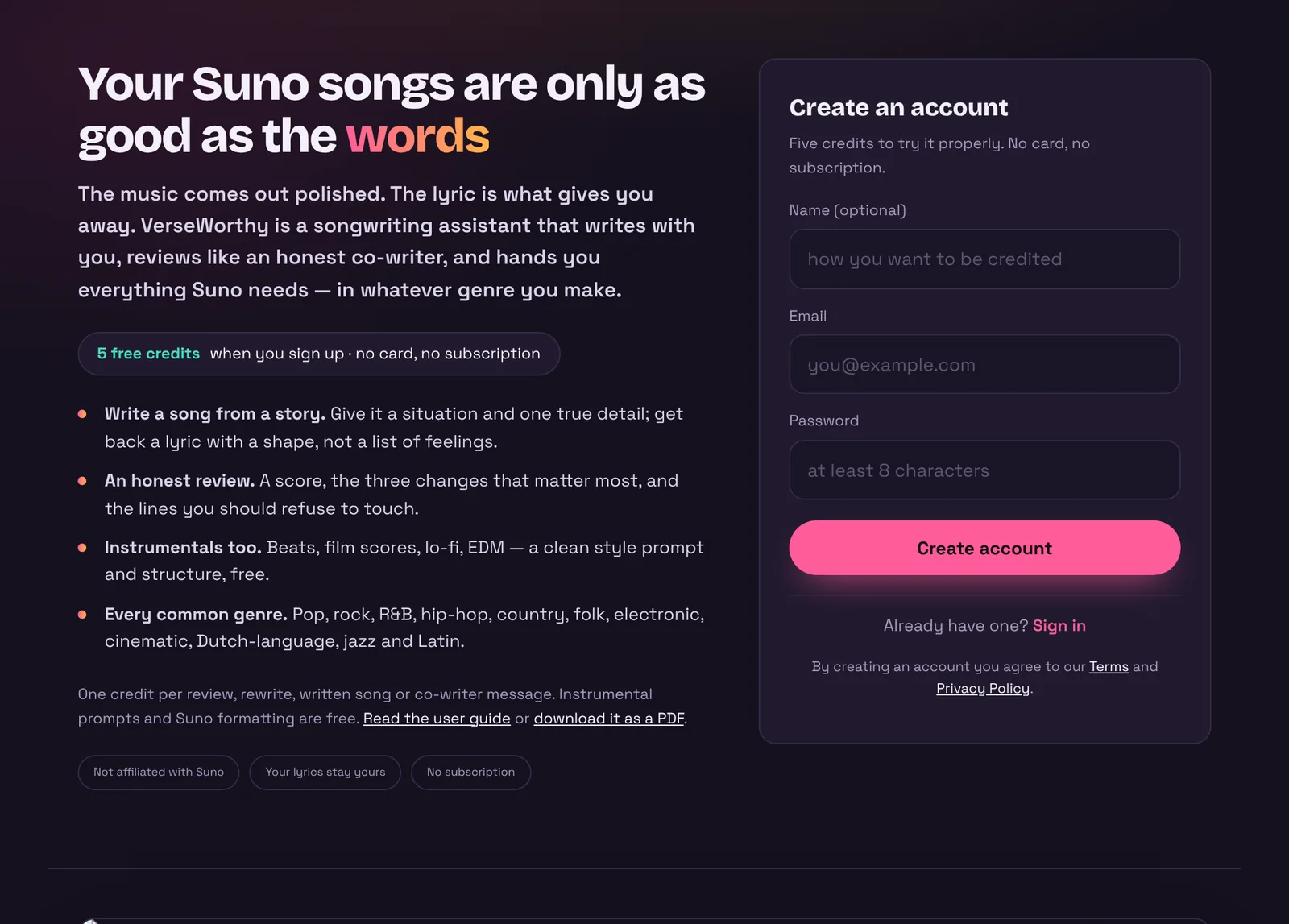
Create a free account and you get five credits to try everything properly. No card, no subscription.
What costs a credit
| Action | Cost |
|---|---|
| Write a song | 1 credit |
| Review (feedback on your lyrics) | 1 credit |
| Rewrite from the feedback, or polish weak lines | 1 credit |
| A message to the co-writer | 1 credit per message |
| Instrumentals, Suno formatting, the quick check | Free — these run in your browser |
If something goes wrong and you do not get a result, the credit is returned automatically. Credits never expire. To buy more, click Top up at the top of the page. Packs are one-off purchases: 50 credits for €9,95, 150 for €19,95 or 400 for €39,95. Payment goes through Stripe; VerseWorthy never sees your card.
Finding your way around
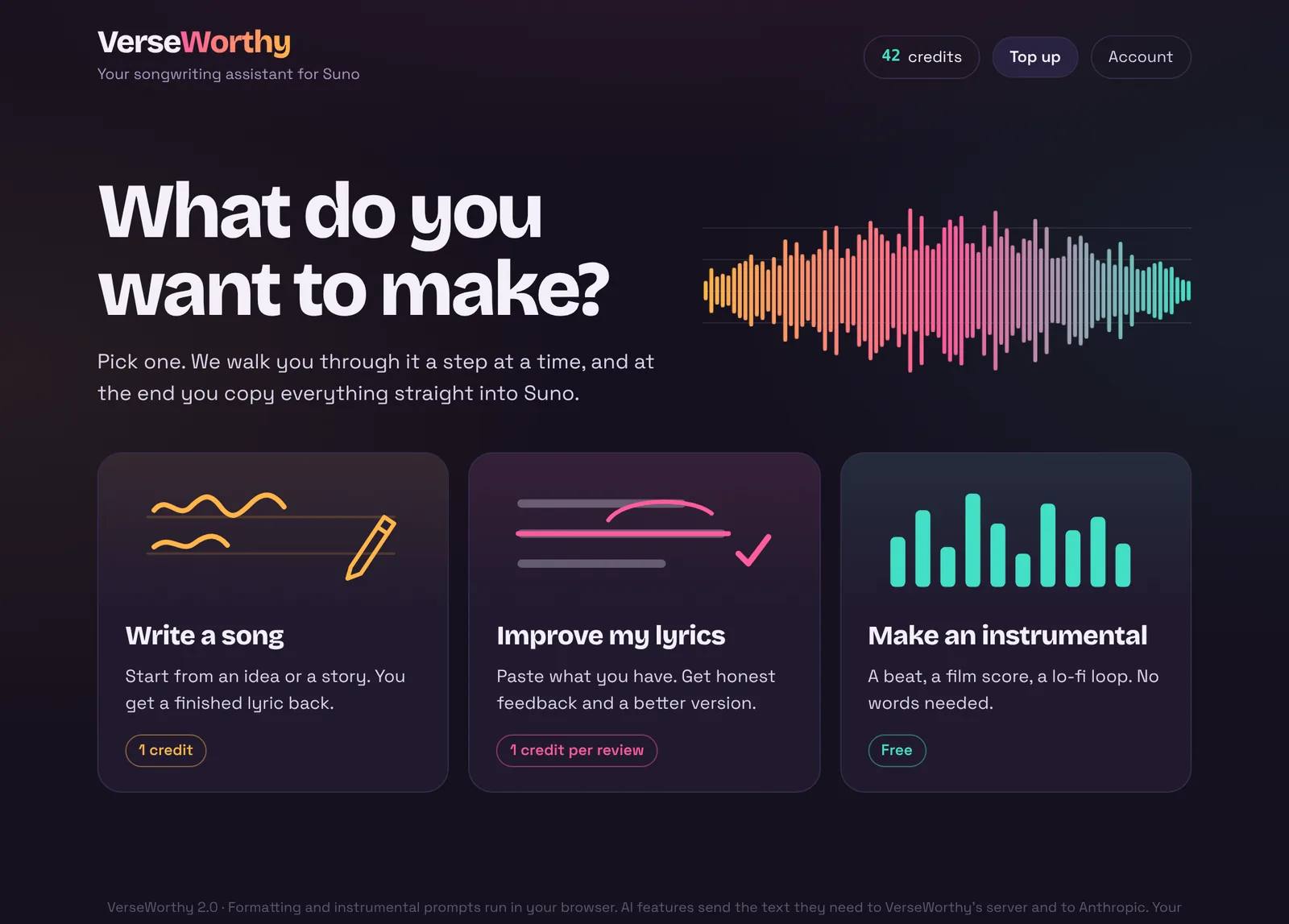
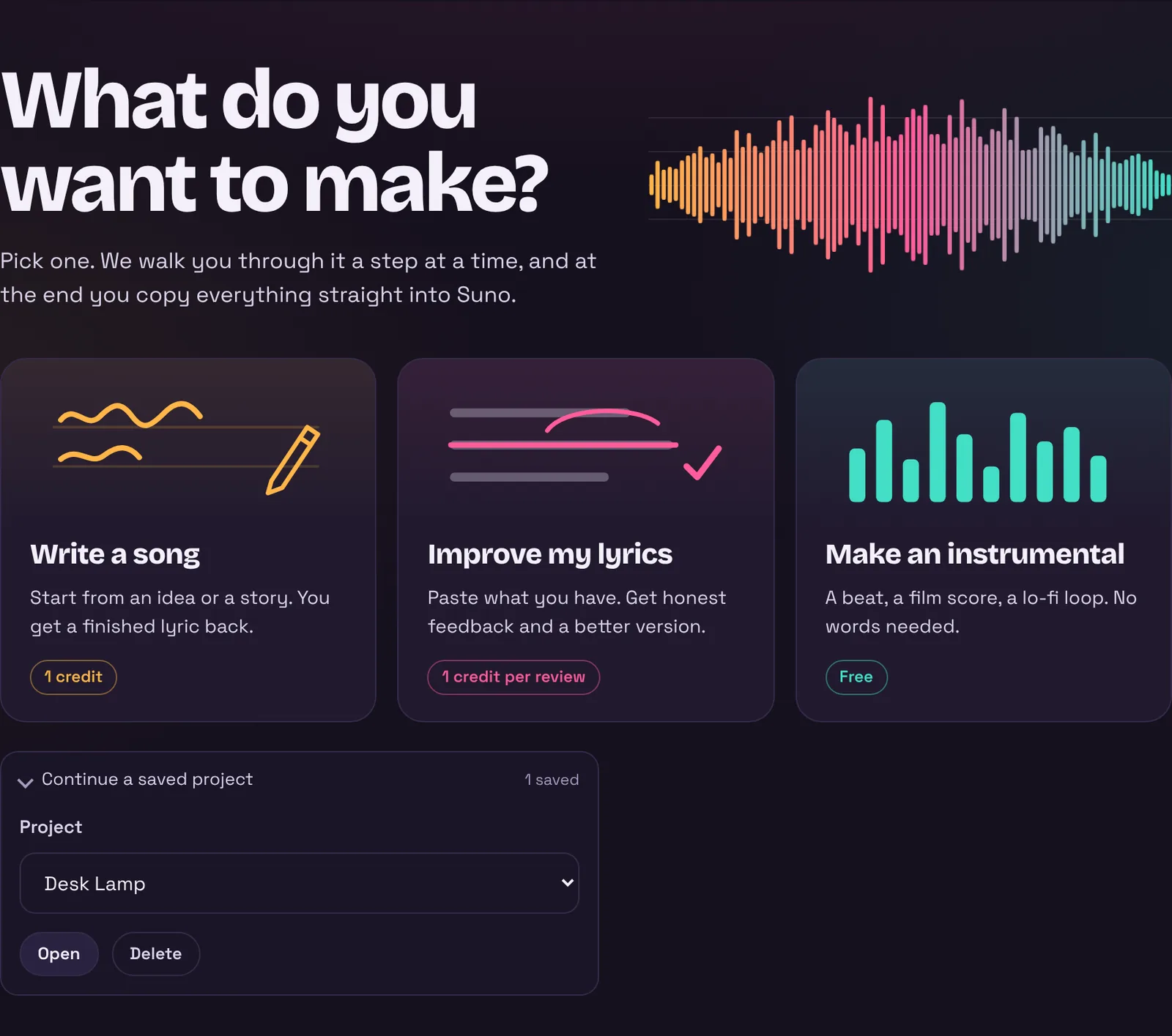
Every visit starts with one question: what do you want to make? After that you only ever see one step at a time.
The bar at the top
- Home takes you back to the start screen from anywhere. Nothing is lost: choose the same path again and your work is still there. Clicking the VerseWorthy logo does the same.
- Credits shows how many you have left. Top up opens the credit packs.
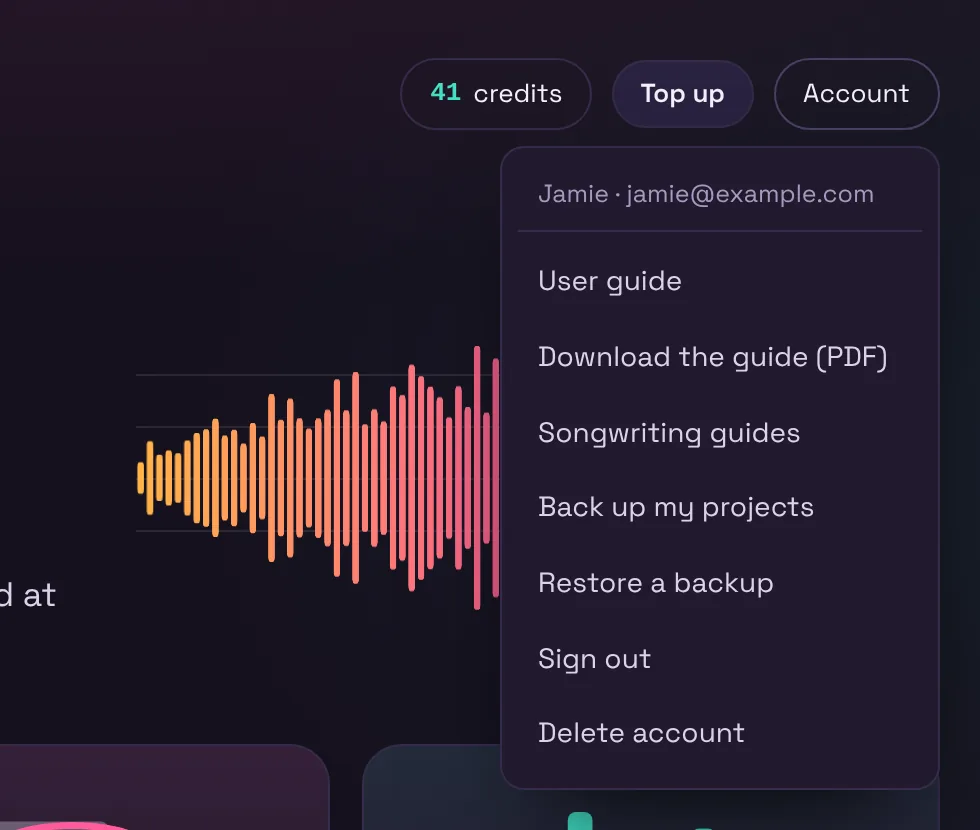
- Account holds this guide (online and as a PDF), backups, signing out and deleting your account.
The progress row
Below the bar you see which path you are on and its steps. Steps you have done get a tick; click them to go back. change next to the path name returns you to the start screen. Your browser’s back button goes back one step at a time.
Write a song
Jamie wants an indie folk song about clearing out her mother’s flat. She has a feeling and one memory, but no lyrics yet.
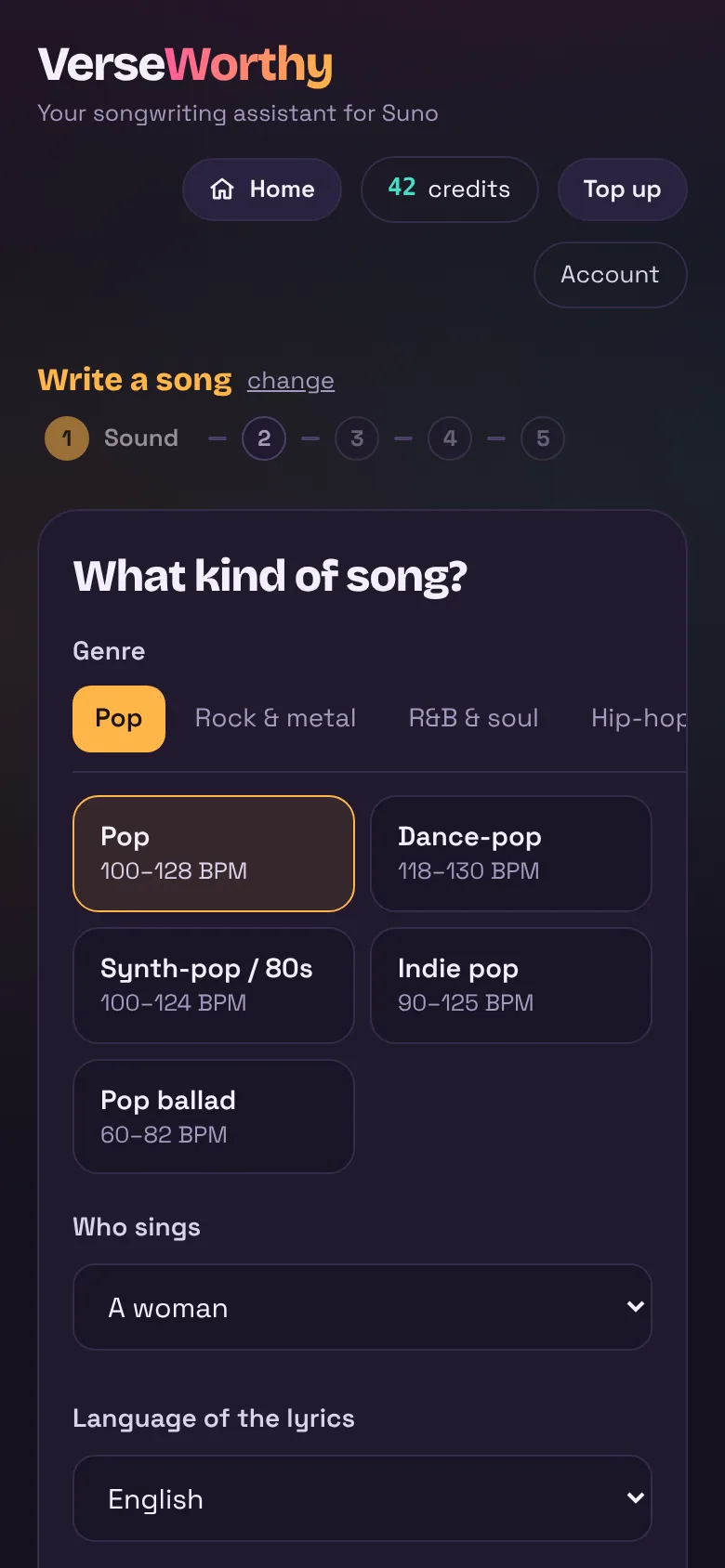
Step 1 — Choose the sound
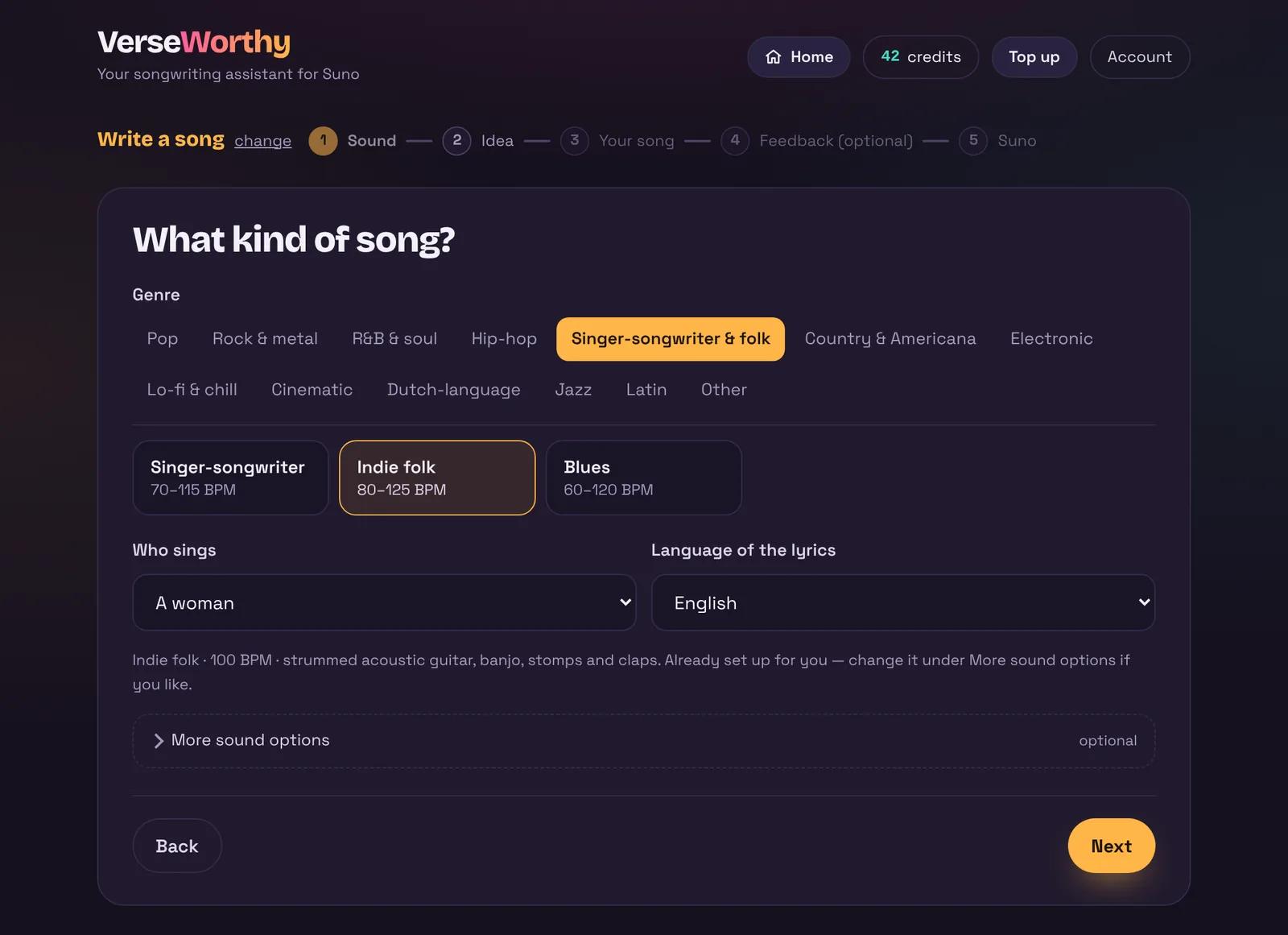
Tempo, instruments and production are filled in for you, based on the genre. The line under the choices tells you what was set. You do not have to change anything — but you can.
Optional: more sound options
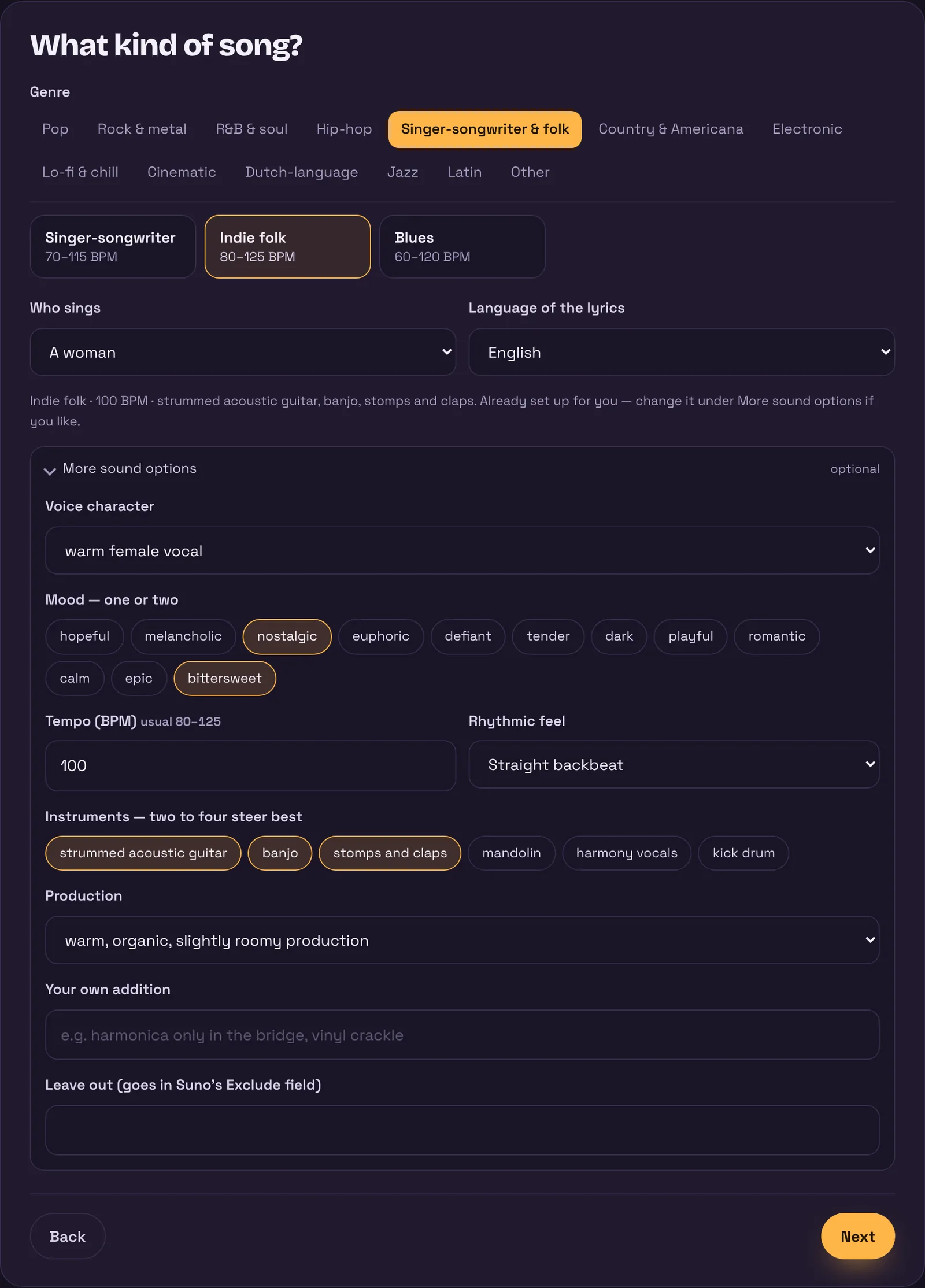
- Voice character — warm, husky, breathy, belting…
- Mood — one or two work best.
- Tempo — the usual range for the genre is shown next to it.
- Rhythmic feel — half-time, shuffle, swing, four-on-the-floor… This decides whether a song feels fast, more than the BPM number does.
- Instruments — two to four steer Suno best.
- Production and your own addition, for anything else you hear in your head.
- Leave out — what you do not want. This goes into Suno’s Exclude field.
Step 2 — Describe the idea
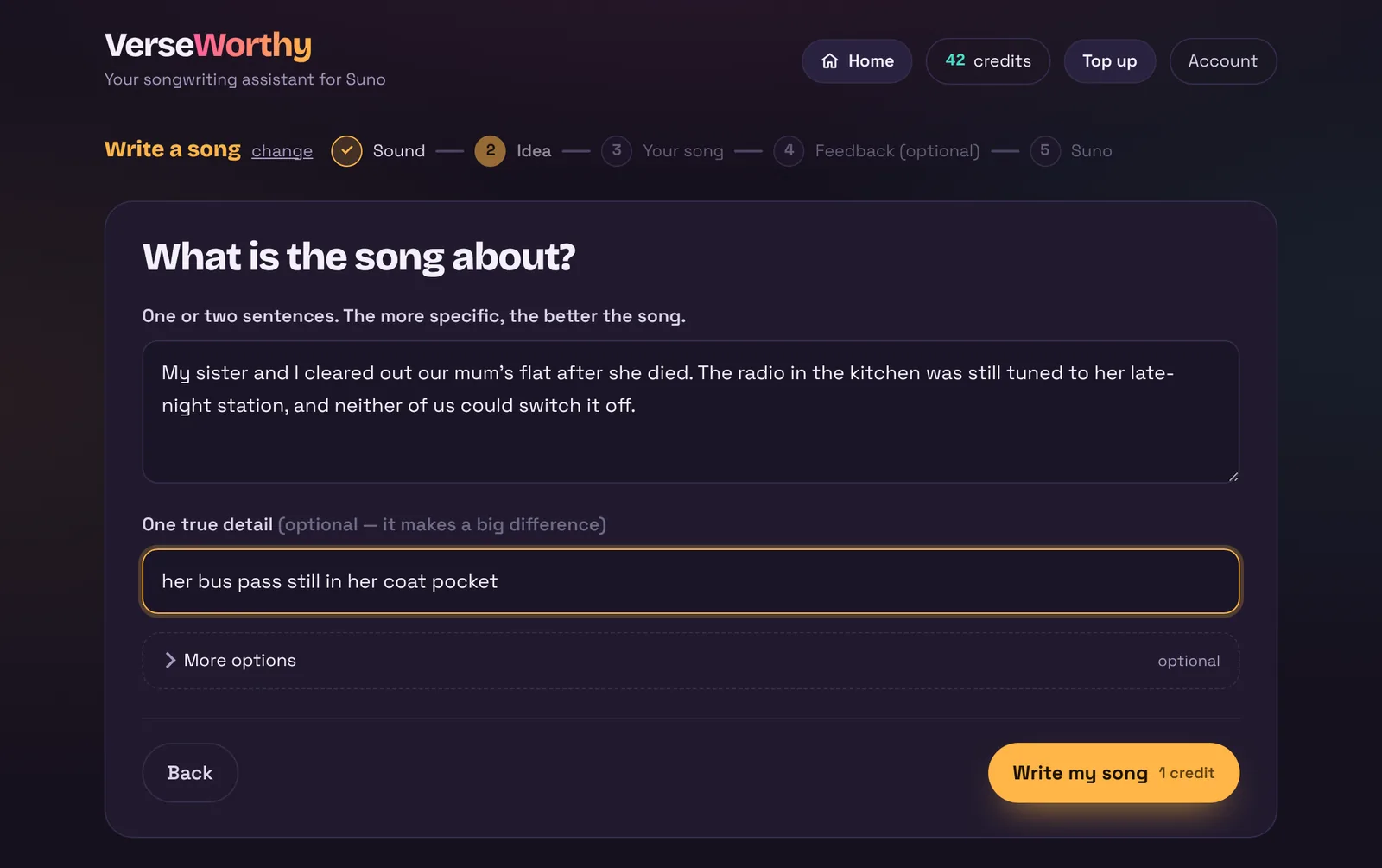
This is the most important step. A specific idea gives a specific song; a general idea gives a generic one.
The one true detail is optional but makes a big difference: it is the kind of thing only you know, and the song is built around it. Under More options you can also give a title idea, the narrator, the setting and the length. Then click Write my song. It usually takes under a minute.
Step 3 — Your song
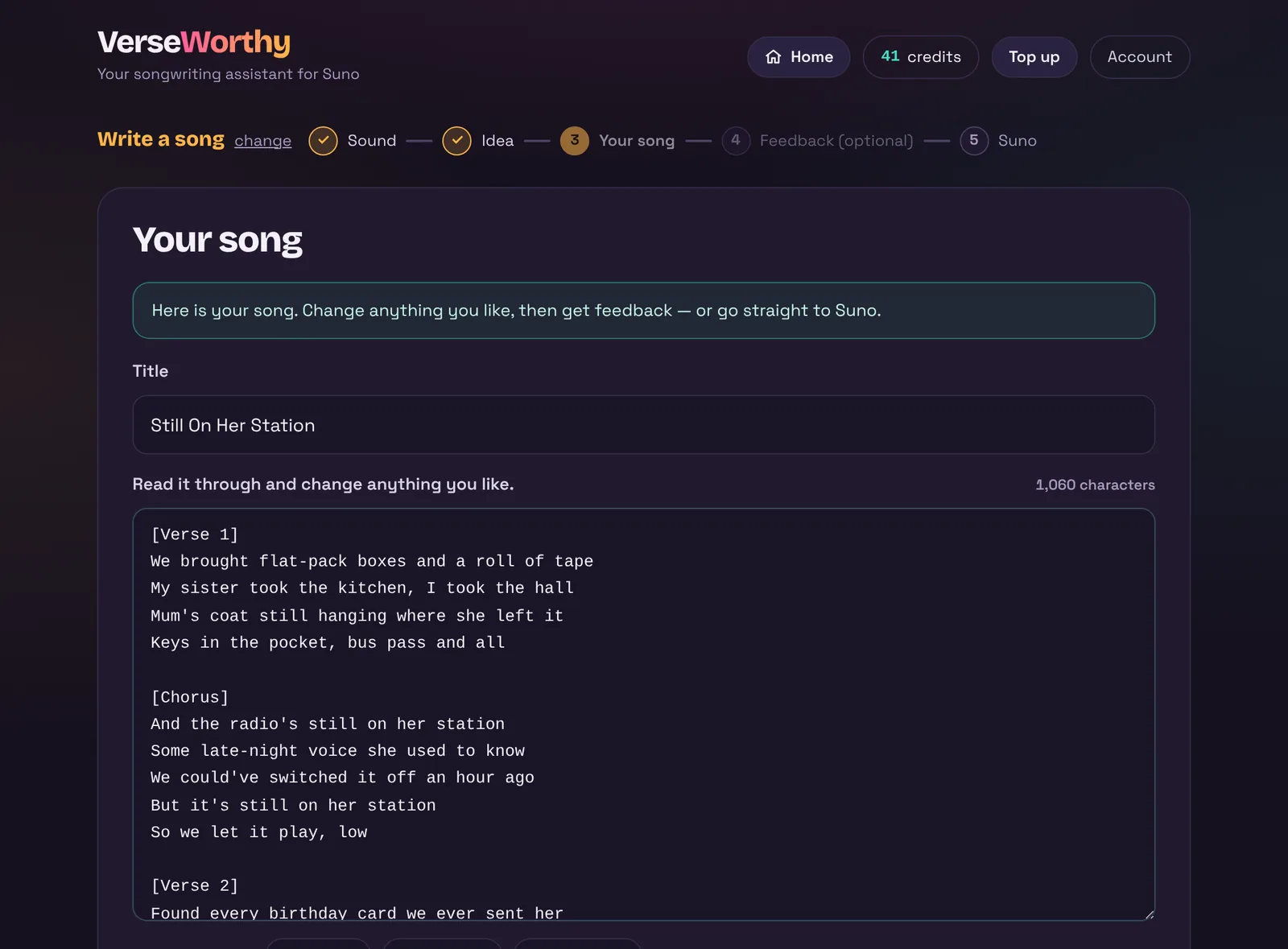
Read it through and change anything you like — it is your song. This is part of what VerseWorthy wrote for Jamie:
[Verse 1] We brought flat-pack boxes and a roll of tape My sister took the kitchen, I took the hall Mum’s coat still hanging where she left it Keys in the pocket, bus pass and all
[Chorus] And the radio’s still on her station Some late-night voice she used to know We could’ve switched it off an hour ago But it’s still on her station So we let it play, low

Get feedback continues exactly like Example 2, step 3. Skip — get the Suno prompt takes you straight to Getting it into Suno.
Improve my lyrics
Sam has written an Americana song, Gravel And Gone, about his late father’s farm. He wants to know if it is any good, and how to make it better.
Step 1 — Choose the sound
Just like in Example 1. Sam picks Country & Americana → Americana and a man’s voice. The genre matters here too: the review judges the song by what that genre asks for. A rap verse is judged on flow and wordplay; a folk song on story and detail.
Step 2 — Paste your lyrics
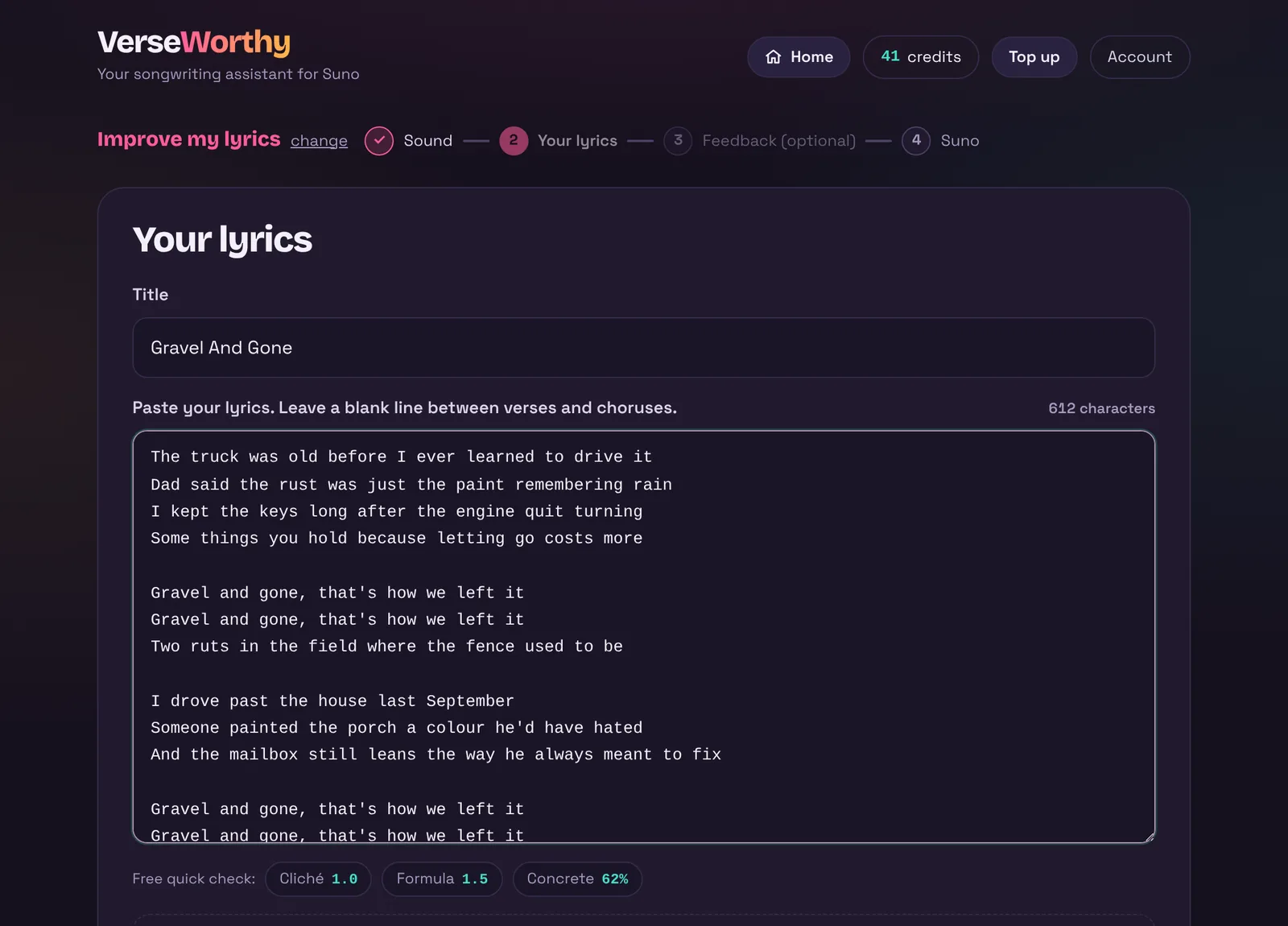
Leave a blank line between verses and choruses. Under the text is the free quick check: a count of stock phrases (Cliché), formula lines that make writing sound generated (Formula), and how many lines contain something you could photograph (Concrete). Green is good. It is only counting — the real judgement is the review.
Under Review options you can set how strict the review should be, and list lines or words that must not change — your title, or a line you love. Then click Review my lyrics.
Step 3 — Feedback
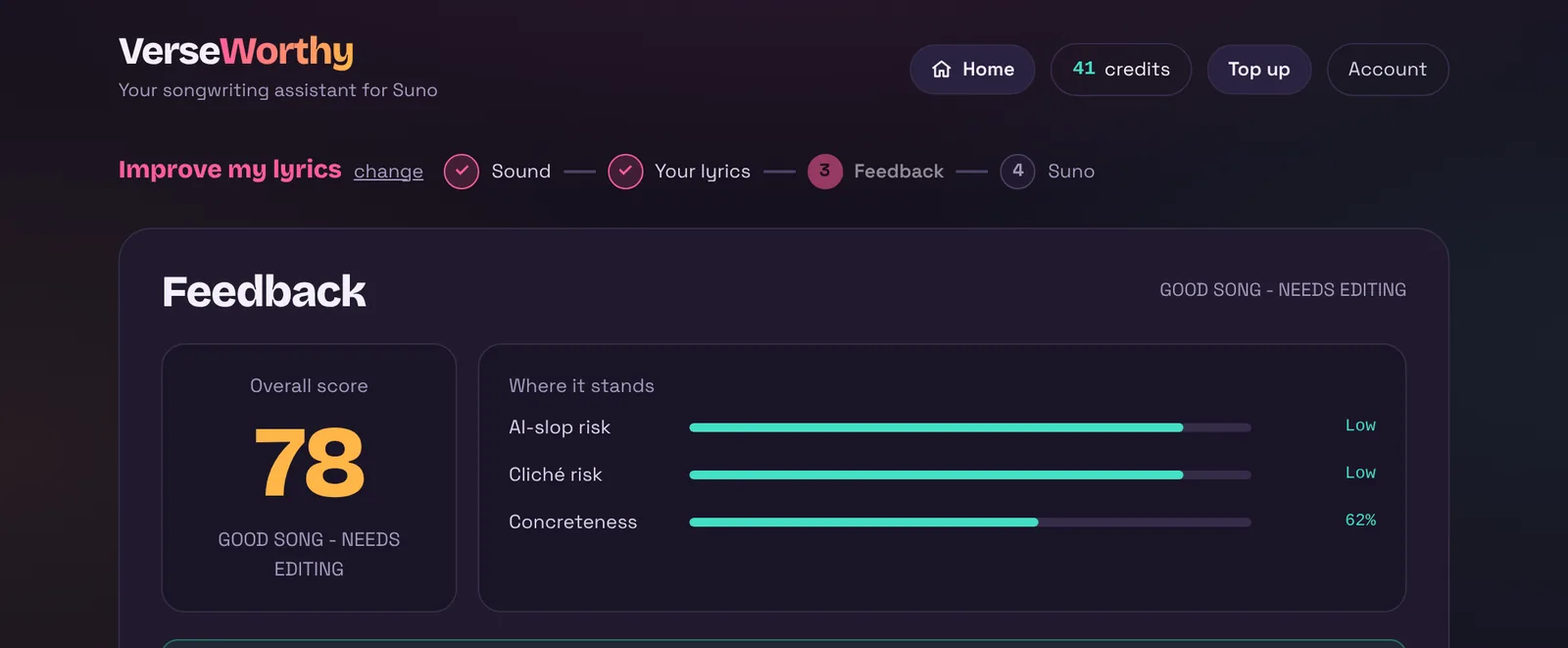
- The score is honest, not encouraging: 50 is ordinary, 70 is strong, 80 is very strong, 90 is rare. Sam’s song scores 78 — Good song, needs editing.
- AI-slop risk says how formulaic the writing is — not whether AI wrote it; no tool can tell that.
- Cliché risk looks for stock images stacked together. Concreteness is the share of lines with something real in them.

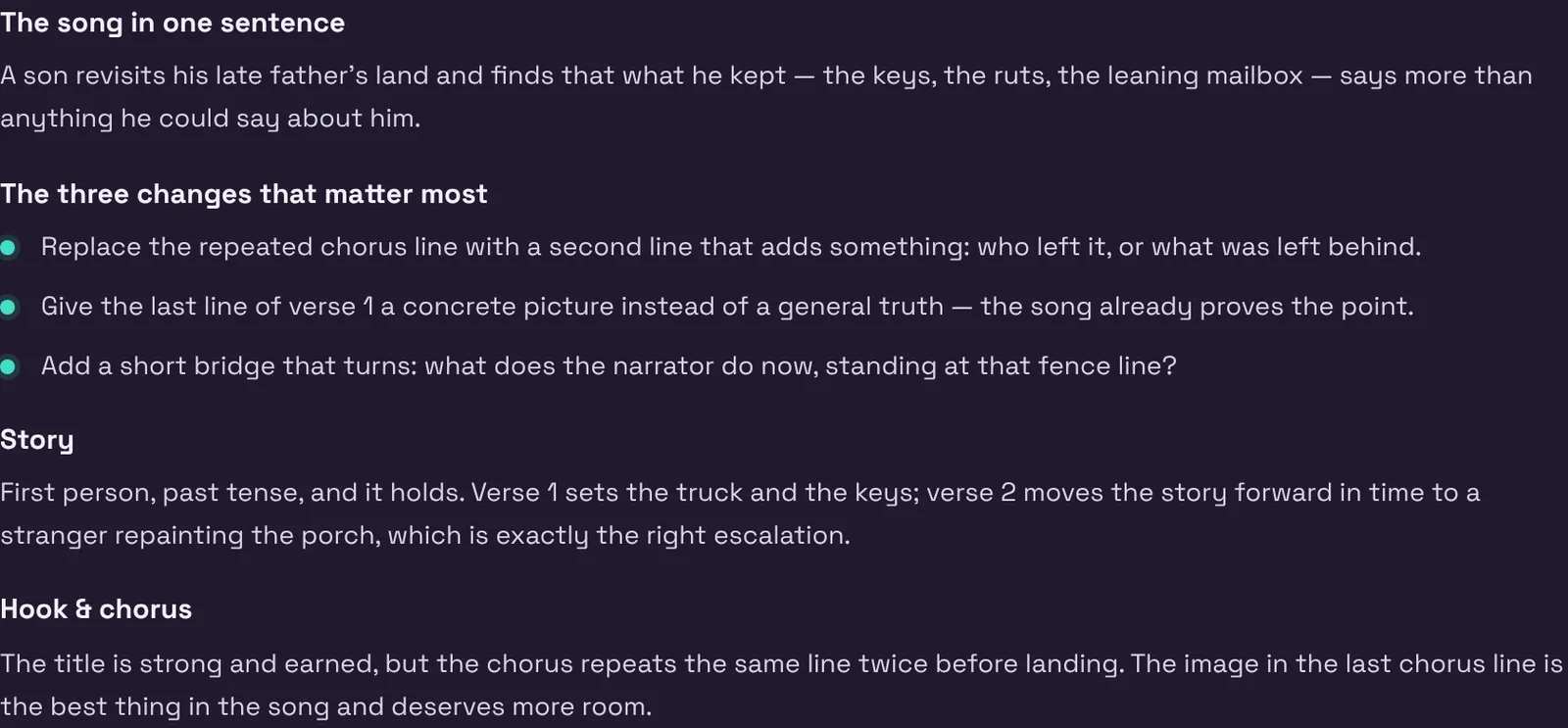
Read the three changes that matter most first. Click Show the full review for everything: section by section, line edits with options, and a full scorecard.
What now?

- Rewrite from the feedback makes the changes the review asks for, keeps the keeper lines, and leaves your voice and story alone.
- Only polish weak lines is a lighter touch: it fixes only what really weakens the song.
After a rewrite
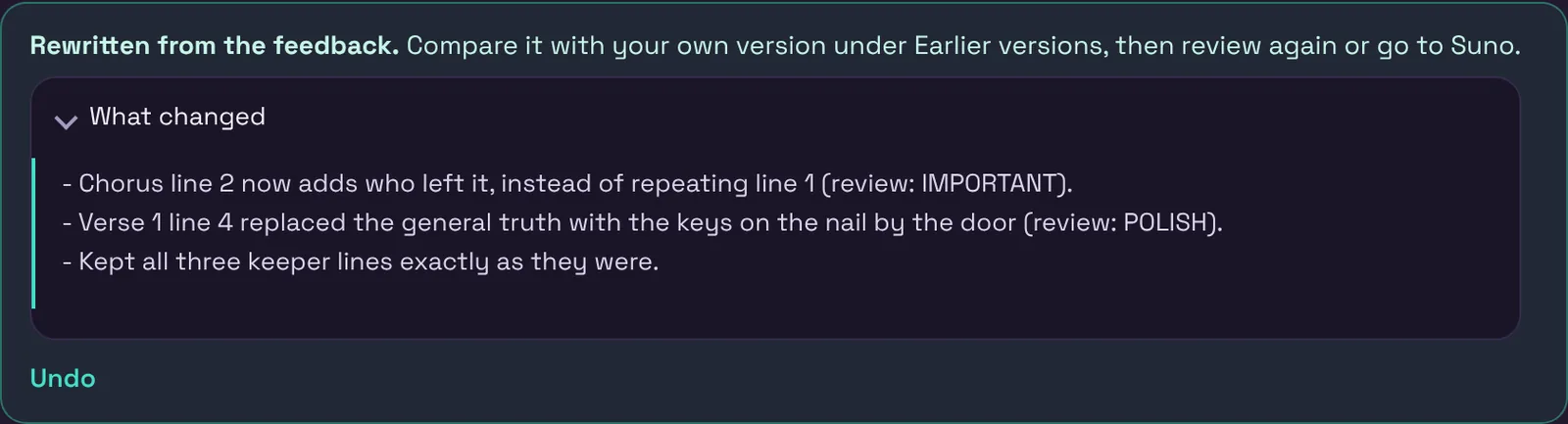
For Sam, the repeated chorus line became “Him in the ground and me on the road”, and a general line in verse 1 became a picture: “They’re still on the nail by the kitchen door”. His three keeper lines stayed exactly as he wrote them.
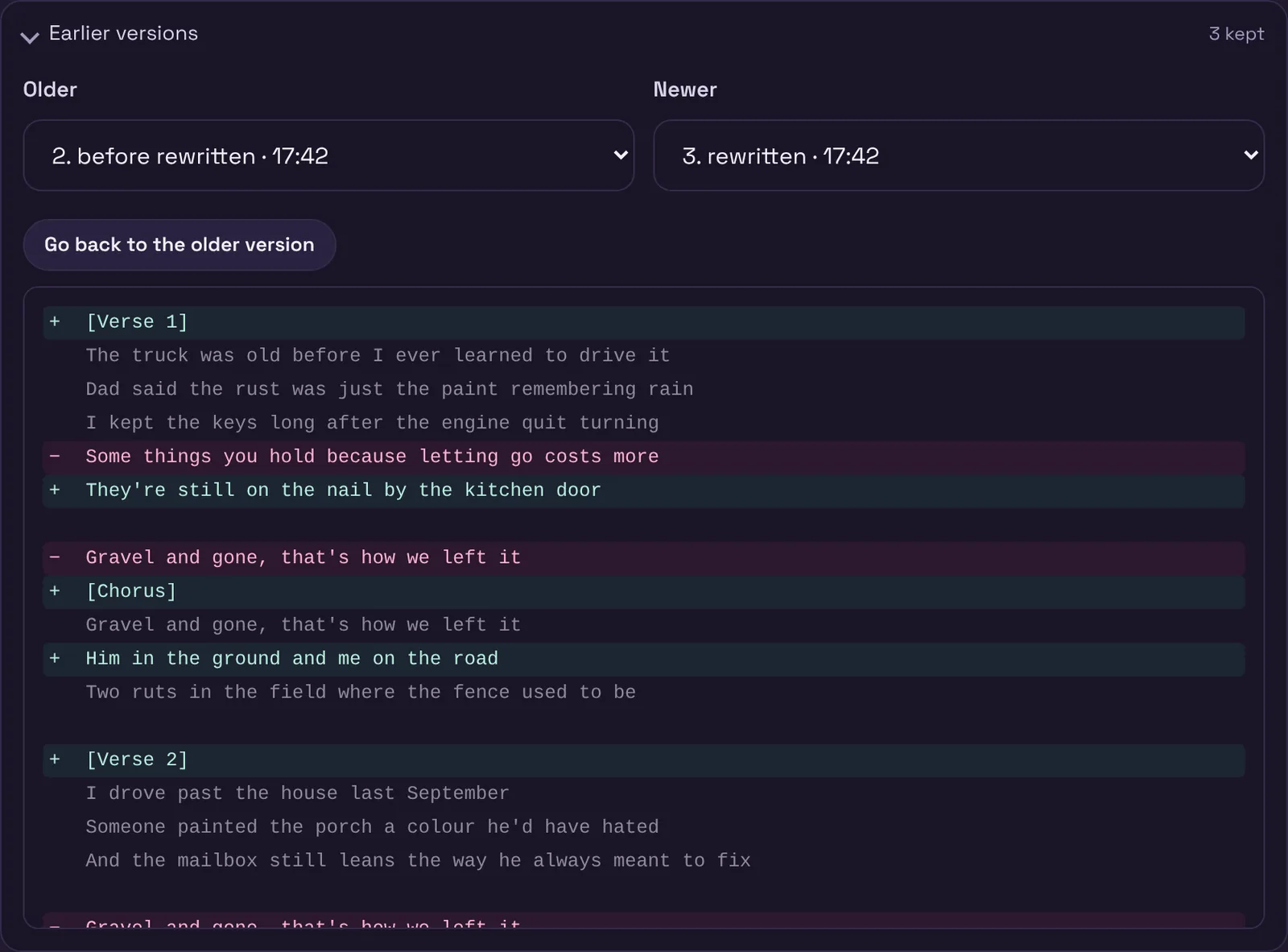
Is the new version better? The score on the feedback page belongs to the old version, and says so. Click Review again to score the new one — or trust your own ear. You decide.
Stuck on one line? Ask the co-writer
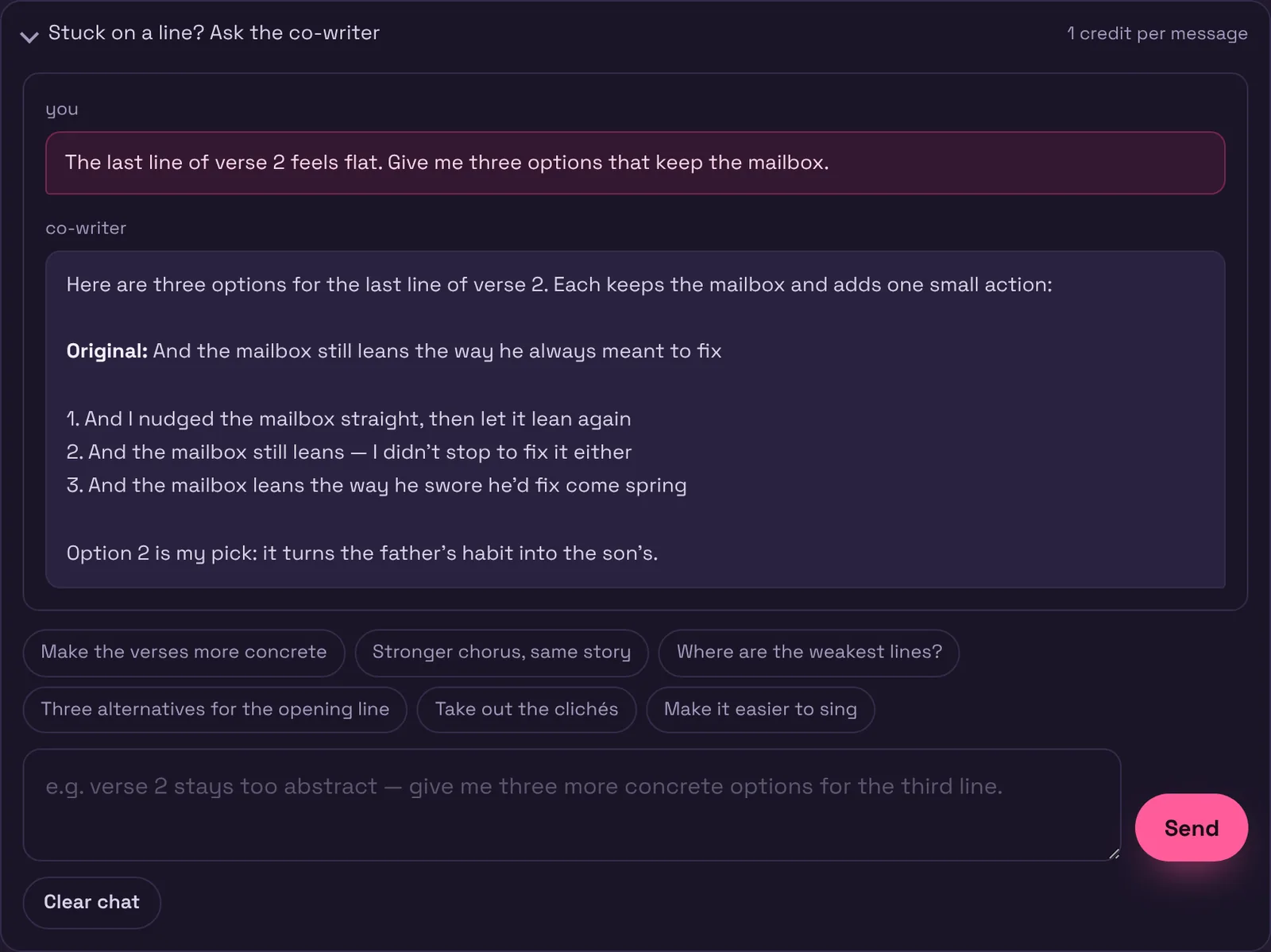
Open Stuck on a line? Ask the co-writer under your lyrics or on the feedback page. It already knows your lyrics, the genre and the latest feedback, so you can be brief:
- “Give me three more concrete options for the third line of verse 2.”
- “The chorus feels weak. Make it stronger without changing the story.”
- “Where are the weakest lines?” · “Make this easier to sing.”
Each message costs one credit. If the co-writer sends back a complete new version, a Use this version button appears.
Make an instrumental
Lee wants a calm lo-fi track to study to. No vocals. This whole path is free: it runs in your browser and uses no credits.
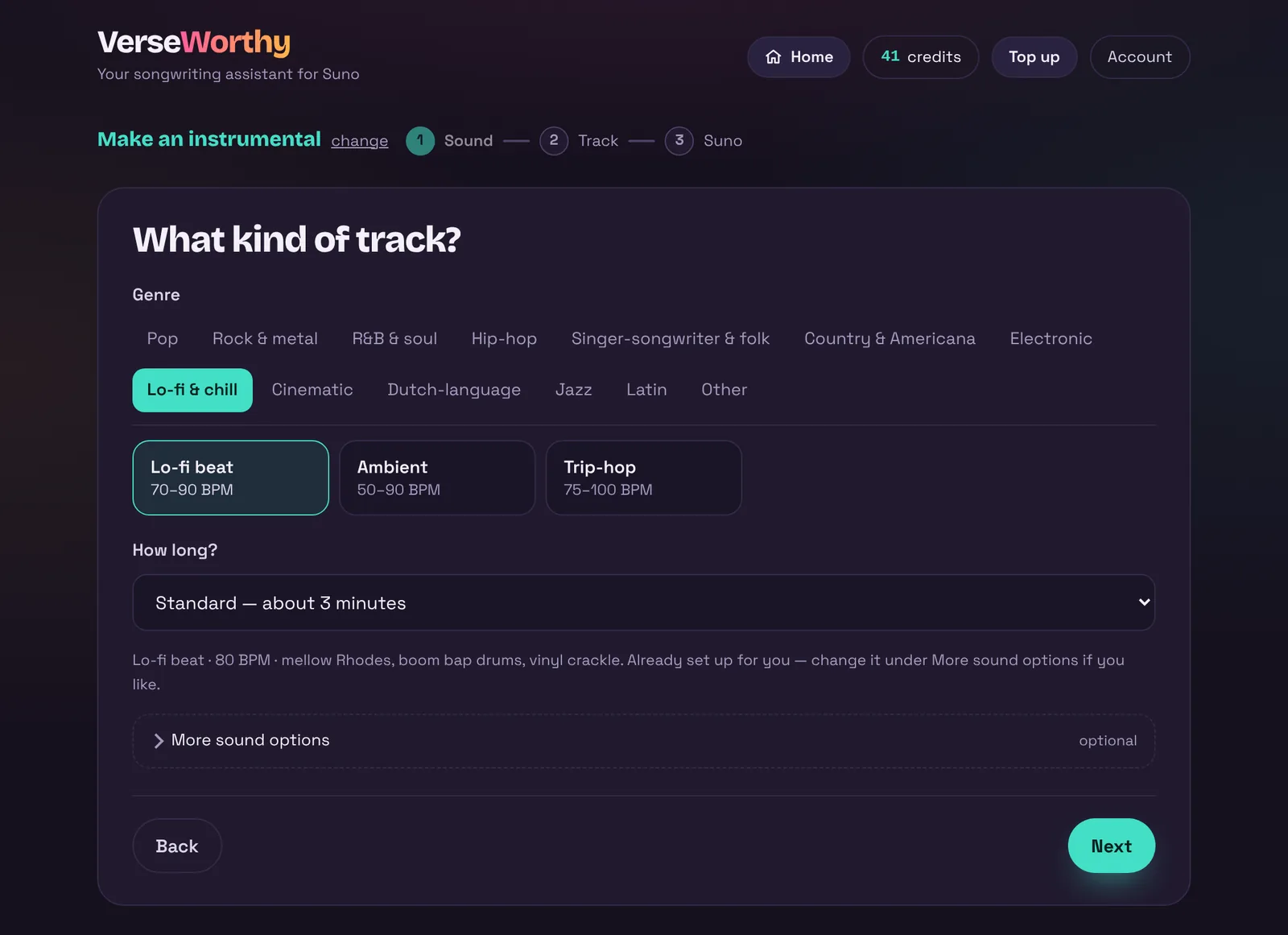
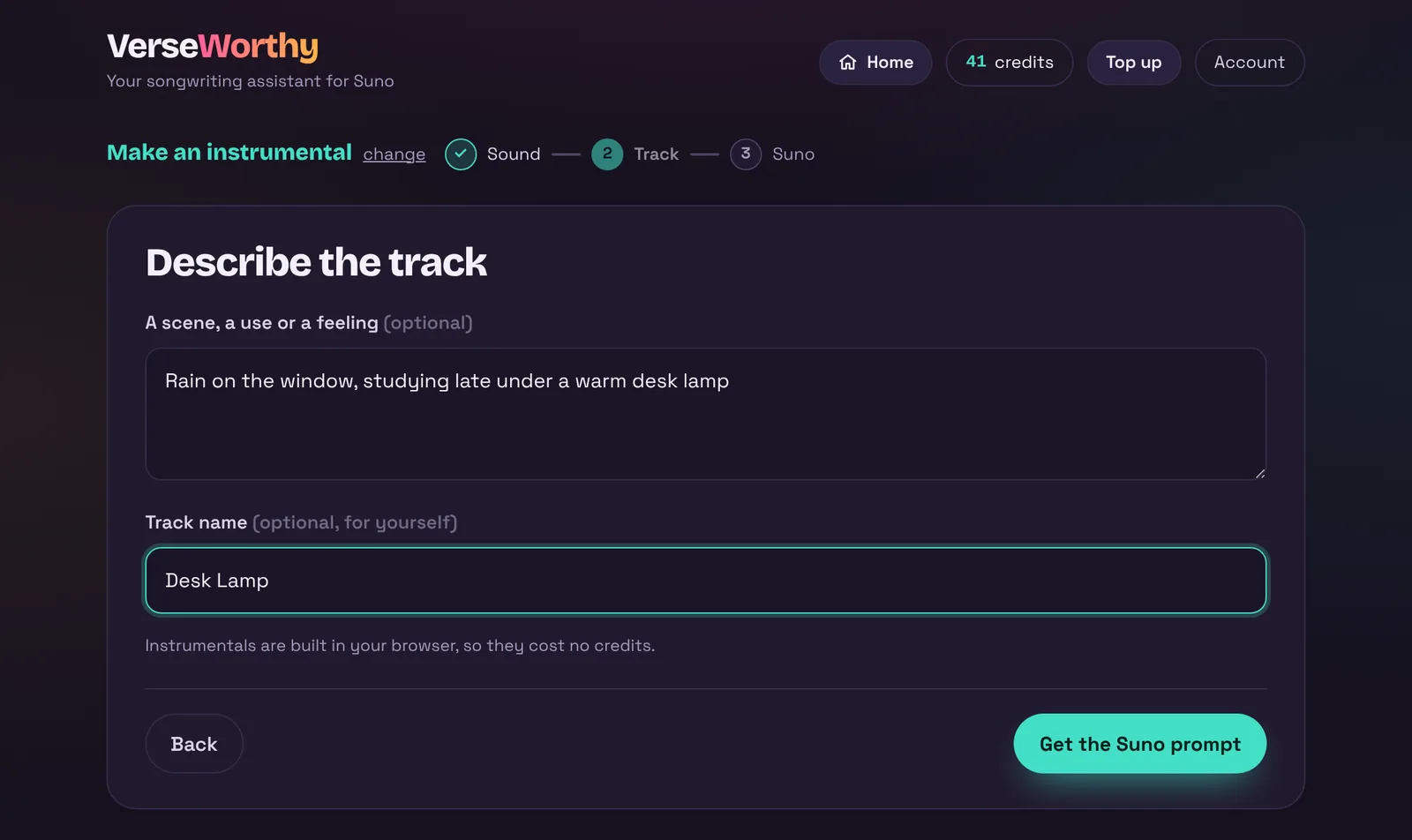
The description is optional but worth it: Suno understands a feeling like “rain on the window, studying late under a warm desk lamp”, and it adds colour the genre alone does not.
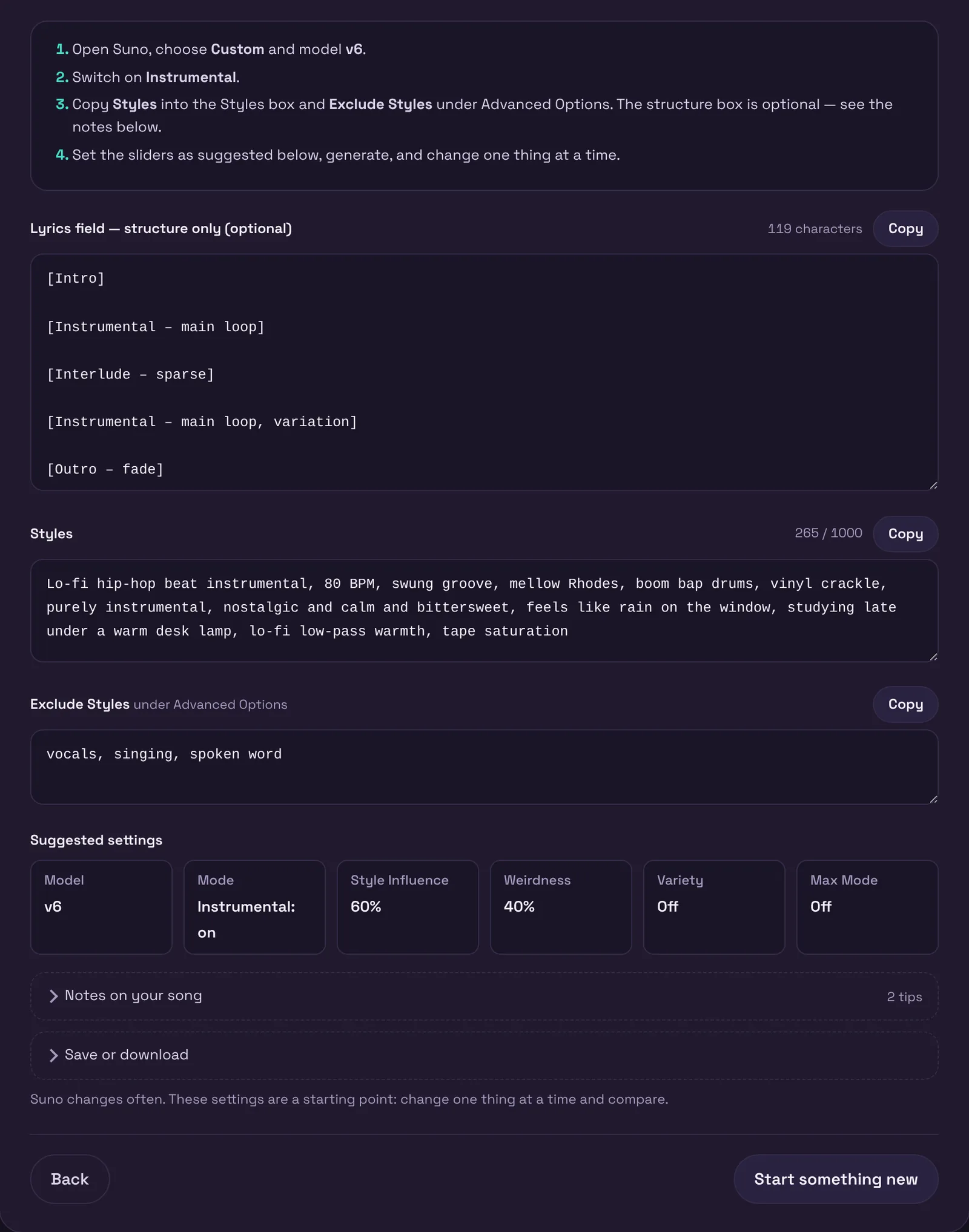
Click Get the Suno prompt. You get a style description, an exclude list that keeps vocals out, and a structure that suits the genre:
| Genre type | Structure you get (standard length) |
|---|---|
| Electronic | Intro → Build-Up → Drop → Breakdown → Build-Up → Drop → Outro |
| Cinematic | Quiet intro → Main theme → Build-Up → Climax → Quiet reflection → Fade |
| Lo-fi & chill | Intro → Main loop → Sparse interlude → Loop variation → Fade |
| Songs and beats | Intro → Main theme → Second theme → Full band → Bridge → Biggest → Outro |
Getting it into Suno
The last step is the same for every path. Everything is ready to copy, and each box has its own Copy button.
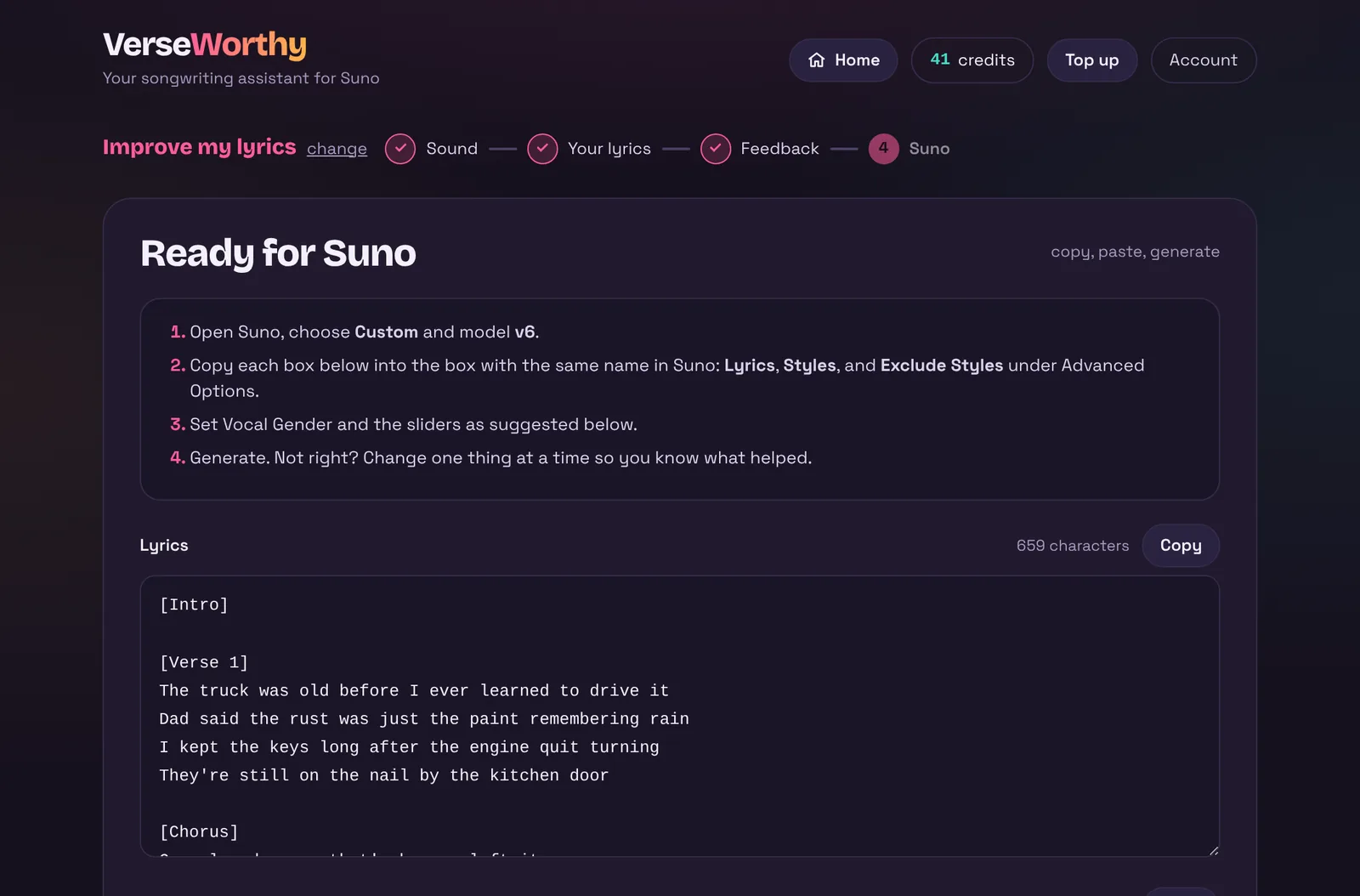
- Open Suno, choose Custom and the v6 model.
- Copy Lyrics into Suno’s Lyrics box. The section tags in square brackets — [Verse 1], [Chorus] — tell Suno the shape of the song; they are not sung.
- Copy Styles into the Styles box. The most important words come first: genre, tempo, instruments, voice, mood, production.
- Open Advanced Options in Suno and copy Exclude Styles into the Exclude box.
- Set the sliders as suggested under Suggested settings, and generate.
For an instrumental, switch on Suno’s Instrumental option and use Styles and Exclude. The structure box is optional. Open Notes on your song for anything worth fixing first.
The suggested settings
| Setting | What it does | Suggested |
|---|---|---|
| Model | Which Suno model makes the song. | v6 |
| Vocal gender | Who sings. | What you chose in step 1 |
| Style Influence | How strictly Suno follows your Styles text. | Higher for genres that must sound exactly right |
| Weirdness | How far Suno may stray from the usual sound of the genre. | Lower for commercial genres, higher for experimental ones |
| Variety | Lets Suno rewrite your style description while it generates. | Off, so your prompt is used as written |
| Max Mode | More consistent long songs; costs more Suno credits. | On only for long tracks |
Suno changes often. These settings are a good starting point, not a rule. If the result is not right, change one thing at a time — then you know what made the difference.
If the result is not right
| What you hear | What to try |
|---|---|
| The wrong genre | Raise Style Influence, or pick a more specific genre in step 1. |
| An instrument you do not want | Add it to Leave out in More sound options, and choose the instrument that should replace it. |
| The song feels too slow | Change the Rhythmic feel (try double-time or a driving beat) rather than only the BPM. |
| Words rushed or cut | Shorten long lines, or the whole lyric. Above about 3,000 characters Suno starts to hurry. |
| Vocals in an instrumental | Check that Suno’s Instrumental switch is on and that “vocals” is in Exclude. |
Saving your work
Projects are saved in your own browser, on your own device. They are never stored on VerseWorthy’s server.
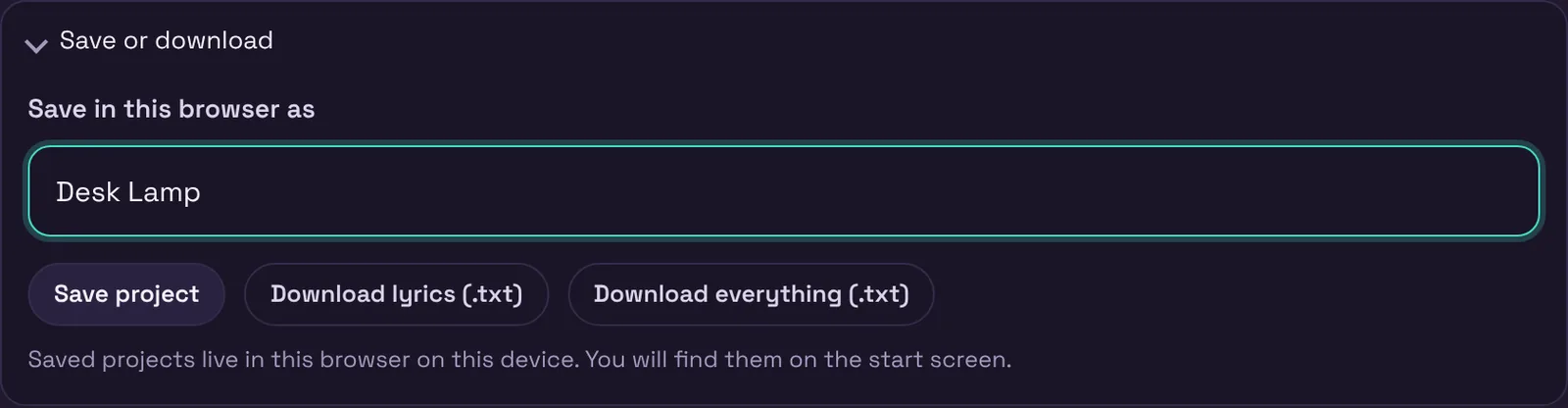
- Download lyrics saves the Suno-ready lyrics as a text file. Download everything adds the style description, exclude list, settings and the review.
- Because projects live in your browser, clearing your browsing data removes them, and they do not appear on your other devices. Use Account → Back up my projects now and then; Restore a backup brings them back, on any device.
All genres
Each genre comes with its own tempo range, instruments, rhythmic feel, production and song structure. Pick the closest one; you can fine-tune the rest.
| Group | Genres |
|---|---|
| Pop | Pop · Dance-pop · Synth-pop / 80s · Indie pop · Pop ballad |
| Rock & metal | Rock · Indie rock · Pop-punk · Hard rock · Metal |
| R&B & soul | R&B · Neo-soul · Soul / funk · Gospel |
| Hip-hop | Boom bap · Trap · Melodic rap |
| Singer-songwriter & folk | Singer-songwriter · Indie folk · Blues |
| Country & Americana | Modern country · Classic country / honky-tonk · Outlaw country · Bluegrass · Americana |
| Electronic | House · Techno · Drum & bass · EDM / festival · Synthwave |
| Lo-fi & chill | Lo-fi beat · Ambient · Trip-hop |
| Cinematic | Cinematic orchestral · Epic trailer · Solo piano / neoclassical |
| Dutch-language | Nederpop · Levenslied · Dutch-language rap |
| Jazz | Swing jazz · Jazz ballad · Smooth jazz |
| Latin | Reggaeton · Latin pop · Bossa nova · Salsa |
| Other | Something else — describe the sound yourself under More sound options |
Lyrics can be written and reviewed in English, Dutch, Spanish, German and French. Choose the language in step 1.
Five tips for better songs
- Be specific. “My dad’s truck keys on the nail by the door” beats “I miss my dad”. One real detail is worth a page of feelings.
- Let verse 2 move. Something should have changed since verse 1: a new moment, a consequence, a reveal. The review checks this for you.
- Put the title in the chorus. It is what people remember and what Suno builds the hook around.
- Protect what is yours. Use Lines or words that must not change for anything you love before you ask for a rewrite.
- Change one thing at a time — in your lyrics and in Suno. Then you know what helped.
Frequently asked questions
- Is VerseWorthy made by Suno?
- No. VerseWorthy is an independent tool. It is not made by, affiliated with or endorsed by Suno.
- Can VerseWorthy make mistakes?
- Yes. It runs on AI, and AI can miss context or simply be wrong. Treat feedback and rewrites as suggestions, and read the final lyric yourself before you use it.
- Does it detect whether lyrics were written by AI?
- No. The AI-slop indicator only describes how formulaic the writing is. No tool can tell who wrote a text, and this one should never be used to accuse anyone.
- Do you keep my lyrics?
- No. When you use an AI feature, the text needed for it is sent to VerseWorthy’s server and to Anthropic, and it is not stored afterwards. Your lyrics stay yours, and they are never used for training.
- Does it work on my phone?
- Yes. Every step works on a phone; the layout adapts to the screen.
- I ran out of credits in the middle of a song.
- Everything you wrote is still on screen. Top up and carry on, or save the project and come back later.
- Something does not work.
- Reload the page; saved projects are safe. If it keeps happening, get in touch.
Want this guide offline, or to print it? It is the same content, in 19 pages.
Download PDF Open VerseWorthy